A mini projector transforms any wall into a massive display for presentations, movies, or gaming when connected to a laptop. These compact devices offer unparalleled portability and convenience, making them essential for professionals, students, and cinephiles who need a larger screen on the go, often projecting images of 100 inches or more with simple plug-and-play setup.
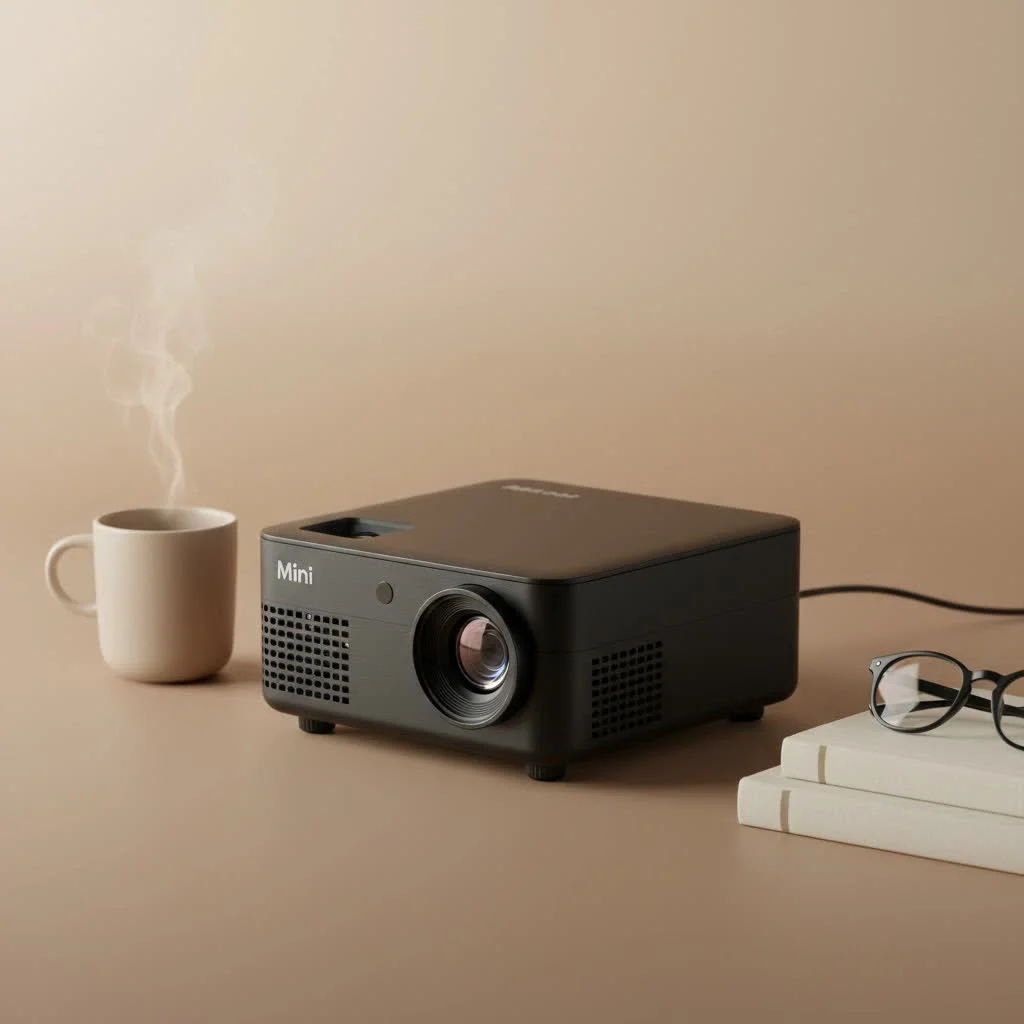
A mini projector is more than just a gadget; it’s a productivity and entertainment major upgrade. Imagine delivering a flawless presentation in a coffee shop or hosting a movie night in your backyard—all with a device that can fit in your backpack. These compact projectors offer unparalleled portability and convenience, making them an essential accessory for professionals, students, and cinephiles alike. For see our portable mini recommendations on this site.
Why a Mini Projector is Your Laptop’s Best Friend
The benefits of pairing a mini projector with your laptop are immense. They offer a level of flexibility that traditional monitors and TVs simply can’t match.
- Ultimate Portability: Designed to be lightweight and compact, mini projectors can be easily carried alongside your laptop, whether you’re heading to a client meeting or a friend’s house.
- Big Screen, Small Package: Despite their small size, these devices can project an image of 100 inches or more, creating an immersive experience for any content.
- Simple Setup: Most modern mini projectors are plug-and-play, featuring user-friendly interfaces and various connectivity options that get you up and running in minutes.
- Versatility: A mini projector is equally adept at displaying business analytics in a boardroom as it is screening a blockbuster film under the stars.
Key Features in a Mini Projector for Laptop
When you start shopping, the technical specifications can seem overwhelming. Let’s break down the most important features to focus on.
Connectivity: HDMI, USB-C, and Wireless
How your projector connects to your laptop is crucial. HDMI is the most common and reliable wired connection, offering universal compatibility. Many modern laptops and projectors now feature USB-C, which can often handle video, power, and data through a single cable. For the ultimate convenience, look for models with wireless connectivity like Wi-Fi or Bluetooth, allowing you to stream or screen mirror directly from your laptop without any cables.
Resolution: Is 1080p Enough?
Resolution determines the clarity and sharpness of the projected image. While some budget projectors offer 480p or 720p, a native resolution of 1080p (Full HD) is the sweet spot for a great viewing experience with a laptop. It provides crisp text for presentations and detailed visuals for movies. 4K projectors are available but come at a premium and are often unnecessary for the screen sizes used with most portable models.
Brightness (Lumens): Lighting Up Your Content
|
Our Picks for the Best Mini Projector in 2026
As an Amazon Associate I earn from qualifying purchases.
|
||
| Num | Product | Action |
|---|---|---|
| 1 | [Built-in Apps & 2025 Upgraded] Mini Projector Support 4K 1080P Auto Keystone 270° Rotatable with WiFi 6 and Bluetooth 5.4, Projector Portable Compatibile with HDMI/TV Stick/Memory Stick/Laptop-Black |
![Check [Built-in Apps & 2025 Upgraded] Mini Projector Support 4K 1080P Auto Keystone 270° Rotatable with WiFi 6 and Bluetooth 5.4, Projector Portable Compatibile with HDMI/TV Stick/Memory Stick/Laptop-Black on Amazon](https://flasf.com/wp-content/plugins/amazon-tables/assets/images/buy.png)
|
| 2 | HAPPRUN Native 1080P Bluetooth Mini Projector, Full HD Portable Outdoor Movie Projector with Built-in Speaker, Compatible with Smartphone, HDMI, USB, AV, Fire Stick, PS5 for Home, Bedroom, Outdoor Use |
|
| 3 | SOOMFON Mini Projector 1080P Support - Portable Small Video Movie Projector Bluetooth 5.1 Auto Keystone Electric Focus for Bedroom/Wall/Home/Outdoor/iPhone/Android/TV Stick |
|
| 4 | Magcubic Mini Projector with WiFi 6 and Bluetooth 5.4, Portable Projector 4K Support, 5W Soundbase Speaker, Auto Vertical Keystone 180°Rotatable Smart Proyector for Movie Home Outdoor |
|
| 5 | 【Officially-Licensed APP & Native 1080P】Thinnest 1.81\" Smart Mini Projector with WiFi and Bluetooth, Auto Focus & Keystone Portable Outdoor Projector, VOPLLS 4K Support Home Movie Projector |
|
| 6 | [Compatible with Netflix & TOF Real-time Focus] Mini Projector with WiFi and Bluetooth, XuanPad Smart Projector 4K Support, Dolby Audio & Keystone, 210° Rotatable Stand for Home |
|
| 7 | [Short Throw/1200ANSI/Built in Apps] 4K Outdoor Projector with WiFi and Bluetooth, Auto Focus Projector with Dual-Mode Stand, Smart Portable Proyector with Netflix/YouTube/PrimeVideo & Dolby |
|
| 8 | Aurzen EAZZE D1 Smart Projector with WiFi and Bluetooth, Netflix-Officially-Licensed, Auto Focus & Keystone, DoIby Audio, Native 1080P Movie, Portable Outdoor Mini Projector, White |
|
| 9 | Mini Portable Projector 4K WiFi 6 BT 5.2 Upgraded Portable Projector Full HD Supported for Phone /PC /TV /HDMI /PS5 /Laptop Auto Keystone Home Theater 180° Rotation [Built-in App] White |
|
| 10 | Aurzen Roku TV Smart Projector with Wifi and Bluetooth, Roku Streaming Experience Built-in, 1080P FHD, Dolby Audio, Auto Focus & Keystone, Zoom, Movie Portable Outdoor Mini Projector, White |
|
Brightness, measured in ANSI lumens, is one of the most critical specs. A projector with 200-500 ANSI lumens is generally sufficient for a dark room. If you plan to present in rooms with some ambient light, look for a model with 500 lumens or more. that higher brightness often comes with a larger size and higher cost.
Battery Life: For True On-the-Go Use
For maximum portability, a built-in battery is a must-have. Most battery-powered mini projectors offer around 2 to 3 hours of playback on a single charge—enough for a full-length movie or several presentations. If you’ll always be near a power outlet, you can save money on a model that runs on AC power only.
How to Connect Your Mini Projector to a Laptop
Connecting your mini projector for laptop is usually a straightforward process. Here are the most common methods.
1. Connecting with an HDMI Cable
- Plug one end of the HDMI cable into the HDMI port on your laptop.
- Plug the other end into the HDMI port on the mini projector.
- Turn on the projector and select the HDMI input source using the projector’s remote or on-device buttons.
- Your laptop’s screen should now be mirrored or extended to the projector.
2. Connecting with a USB-C Cable
- Ensure both your laptop and mini projector support video output via USB-C.
- Connect the two devices with a single USB-C cable.
- Select the USB-C input on your projector.
- The connection should establish automatically, often charging your laptop at the same time.
3. Connecting Wirelessly
- Ensure both the mini projector and your laptop are connected to the same Wi-Fi network.
- Enable the screen mirroring function on the projector (often called Miracast, AirPlay, or Screen Share).
- On your Windows laptop, press
Windows Key + Kto open the “Connect” pane and select your projector. On a MacBook, use AirPlay from the Control Center. - Your display will be mirrored wirelessly. Note that this method can sometimes have a slight delay or be affected by Wi-Fi quality.
“The magic of a mini projector is its spontaneity,” notes David Chen, a portable display technology analyst. “But for the best results, always consider your environment. A smooth, light-colored wall can work wonders, but a dedicated portable screen will always provide the sharpest, most vibrant image.”
Troubleshooting Common Connection Problems
Even with a simple setup, you might run into issues. Here’s how to solve the most common ones.
- “No Signal” Message: Double-check that you’ve selected the correct input source (HDMI, USB-C) on your projector. Ensure your cables are securely connected at both ends.
- Wrong Display Mode: By default, your laptop may “Extend” its display instead of “Mirroring” it. To change this, press
Windows Key + Pon a Windows PC or go to “Displays” in System Settings on a Mac to select the mirroring option. - No Audio: If you are connected via HDMI, audio should transfer to the projector’s built-in speaker. If you want to use better speakers, you can either connect them to the projector’s audio-out port or simply select your laptop’s internal speakers as the audio output source in your computer’s sound settings.
Frequently Asked Questions (FAQ)
Can I use any mini projector with my laptop?Yes, as long as your laptop and the projector share a common connection port, like HDMI or USB-C, they will be compatible. Wireless connectivity options like Miracast or AirPlay further expand compatibility.
Do I need to install software to use a mini projector?For standard wired connections like HDMI, no software or drivers are required. It’s a plug-and-play process. Some wireless projection features may require a specific app, but this is becoming less common.
How do I get sound when using the projector?Most mini projectors have small built-in speakers that receive audio via HDMI or USB-C. For better sound quality, you can connect external speakers to the projector’s audio-out port or use a Bluetooth speaker paired with your laptop.
Can a mini projector be powered by my laptop?Generally, no. Mini projectors require more power than a standard laptop USB port can provide. They need to be plugged into a wall outlet or run on their own built-in battery.
Is a 4K mini projector worth it for a laptop?For most users, a 1080p mini projector provides excellent clarity for the typical projection sizes of 60-100 inches. While 4K offers more detail, the difference is often minimal at these screen sizes and may not be worth the significant extra cost.
Conclusion: Unleash Your Laptop’s Potential
A mini projector for laptop is an incredibly powerful tool that breaks the boundaries of a traditional screen. It empowers you to share ideas, present information, and enjoy media on a grand scale, anywhere you go. By focusing on key features like connectivity, brightness, and resolution, you can find a device that perfectly suits your needs. Whether for work, school, or play, pairing a mini projector with your laptop opens up a new world of visual possibilities.
Frequently Asked Questions
Can any mini projector be used with a laptop?
Yes, most mini projectors are compatible with laptops as long as they share a common connection port such as HDMI or USB-C. Wireless options like Miracast or AirPlay also expand compatibility, allowing for flexible setup.
Is software installation necessary to use a mini projector with a laptop?
For standard wired connections like HDMI, no additional software or drivers are required; it's a plug-and-play process. Some wireless projection features might occasionally need a specific app, but this is becoming less common with modern devices.
How can I get sound when my laptop is connected to a mini projector?
Most mini projectors include small built-in speakers that receive audio via HDMI or USB-C. For enhanced sound quality, you can connect external speakers to the projector's audio-out port or pair a Bluetooth speaker directly with your laptop.
Can a laptop power a mini projector directly?
Generally, no, a laptop cannot directly power a mini projector through a standard USB port. Mini projectors typically require more power and need to be plugged into a wall outlet or operate using their own built-in battery, which usually provides 2 to 3 hours of playback.
Is a 4K mini projector a worthwhile investment for laptop use?
For most users, a 1080p (Full HD) mini projector offers excellent clarity for typical projection sizes ranging from 60 to 100 inches. While 4K provides more detail, the visual difference is often minimal at these screen sizes and may not justify the significant additional cost.
Connect Your Mini Projector to a Laptop
Learn the three most common methods to connect your mini projector to a laptop for presentations, movies, or gaming.
Plug one end of the HDMI cable into your laptop's HDMI port and the other into the projector. Turn on the projector and select the HDMI input source using its remote or buttons. Your laptop's screen should then be mirrored or extended.
Ensure both devices support video output via USB-C. Connect them with a single USB-C cable and select the USB-C input on your projector. The connection should establish automatically, often charging your laptop simultaneously.
Connect both devices to the same Wi-Fi network and enable screen mirroring on the projector (e.g., Miracast, AirPlay). On Windows, press Windows Key + K; on a MacBook, use AirPlay from Control Center to select your projector. Your display will then be mirrored wirelessly.
Get our weekly buyer guide
Practical specs, not advice. Unsubscribe anytime.
I bought one of these mini projectors after reading about how easy they are to set up for presentations. I’m a student and often need to share my screen for group projects, and this has been a lifesaver. It really does offer that simple plug-and-play setup, which is exactly what I needed. The image quality is surprisingly good for such a small device, even projecting onto a textured wall.
I was looking for something to host backyard movie nights, and the idea of a 100-inch display from a portable projector really caught my eye. This little gadget delivers! It’s super convenient to just grab it and go. My only minor complaint is that the built-in speaker isn’t amazing, so I usually connect it to an external one for better sound, but that’s a small trade-off for the portability.
I got a mini projector for my laptop, hoping to use it for gaming on the go. While it’s great for movies and presentations, I found the input lag a bit noticeable for fast-paced games. It’s not terrible, but if you’re a serious gamer, you might want to manage expectations. For everything else, like watching Netflix in a hotel room, it’s pretty fantastic and fits right in my backpack.
As a cinephile, I’m always looking for ways to enhance my viewing experience, and this mini projector has been a game-changer. The ability to turn any wall into a massive display for movies is incredible. It’s so compact, yet the picture it puts out is really impressive. Definitely makes watching films feel more immersive, even when I’m not at home.