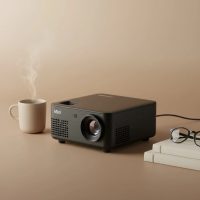
Imagine turning any wall into a massive screen for movies, gaming, or presentations, all powered by the Android phone in your pocket. This isn’t science fiction; it’s the incredible convenience offered by a mini projector for Android. These compact devices have revolutionized portable entertainment, but choosing the right one can feel overwhelming. With so many options and technical specs, how do you find the perfect match for your device and needs? As your go-to experts at Flasf.com, we’re here to break it all down, ensuring you can confidently step into the world of portable big-screen entertainment.
Why a Mini Projector is Your Android’s Best Friend
The magic of a mini projector lies in its freedom. It’s about more than just watching a movie; it’s about creating an experience wherever you are. For Android users, this synergy is particularly powerful. You can stream your favorite shows from YouTube during a camping trip, share a photo slideshow at a family gathering, or even practice a presentation in a coffee shop, all without being tethered to a TV or bulky monitor. The portability of these devices, combined with the vast ecosystem of your Android phone, unlocks a new level of media consumption on your own terms. For see our portable mini recommendations on this site.
How Do I Connect My Android Phone to a Mini Projector?
Getting your phone’s screen onto the big screen is the most critical step. Thankfully, you have a few reliable options. The best method for you will depend on your projector’s capabilities and your specific situation.
Wireless Connection: The Cable-Free Convenience
The most popular method is connecting wirelessly over Wi-Fi. This is typically done using screen mirroring technology.
- Built-in Casting/Screencasting: Most modern mini projectors designed for Android have built-in support for Miracast or a generic “Screen Mirroring” or “Wireless Display” function. On your Android phone, you can usually find this feature in your quick settings panel, often labeled “Smart View,” “Screen Cast,” or “Project.”
- How it Works: Simply connect both your phone and the mini projector to the same Wi-Fi network. Then, activate the screen mirroring function on the projector and select it from the cast menu on your phone. Your phone’s screen will be duplicated on the projected image in seconds. This method is perfect for sharing photos, browsing the web, or streaming from apps that allow casting.
Wired Connection: Stability and Quality
For the most stable and highest-quality connection, nothing beats a direct physical link. This is the preferred method for gaming or watching high-bitrate movies where a wireless lag could be a problem.
- USB-C to HDMI: Many modern Android phones with a USB-C port support video output, often called “DisplayPort Alt Mode.” You can use a simple USB-C to HDMI adapter or a direct USB-C to HDMI cable to connect your phone to the projector’s HDMI port. This provides a direct, high-fidelity signal.
- MHL Adapters: Some older Android phones used a standard called MHL (Mobile High-Definition Link). If you have one of these devices, you’ll need a specific MHL adapter that plugs into your phone’s micro-USB port and provides an HDMI output.
Expert Tip from David Chen, Lead Product Developer at Flasf.com: “While wireless is convenient, a wired USB-C to HDMI connection is the gold standard for reliability. It eliminates potential Wi-Fi interference and ensures you get the best possible picture quality your phone and projector can deliver, especially for fast-paced content.”
Key Features to Look For in a Mini Projector for Android
Not all mini projectors are created equal. To ensure a great experience with your Android device, focus on these essential features.
Connectivity is King
|
Our Picks for the Best Mini Projector in 2026
As an Amazon Associate I earn from qualifying purchases.
|
||
| Num | Product | Action |
|---|---|---|
| 1 | Magcubic Mini Projector with WiFi 6 and Bluetooth 5.4, Portable Projector 4K Support, 5W Soundbase Speaker, Auto Vertical Keystone 180°Rotatable Smart Proyector for Movie Home Outdoor |

|
| 2 | [Short Throw/1200ANSI/Built in Apps] 4K Outdoor Projector with WiFi and Bluetooth, Auto Focus Projector with Dual-Mode Stand, Smart Portable Proyector with Netflix/YouTube/PrimeVideo & Dolby |
|
| 3 | HAPPRUN Native 1080P Bluetooth Mini Projector, Full HD Portable Outdoor Movie Projector with Built-in Speaker, Compatible with Smartphone, HDMI, USB, AV, Fire Stick, PS5 for Home, Bedroom, Outdoor Use |
|
| 4 | Mini Portable Projector 4K WiFi 6 BT 5.2 Upgraded Portable Projector Full HD Supported for Phone /PC /TV /HDMI /PS5 /Laptop Auto Keystone Home Theater 180° Rotation [Built-in App] White |
|
| 5 | Aurzen EAZZE D1 Smart Projector with WiFi and Bluetooth, Netflix-Officially-Licensed, Auto Focus & Keystone, DoIby Audio, Native 1080P Movie, Portable Outdoor Mini Projector, White |
|
| 6 | Aurzen Roku TV Smart Projector with Wifi and Bluetooth, Roku Streaming Experience Built-in, 1080P FHD, Dolby Audio, Auto Focus & Keystone, Zoom, Movie Portable Outdoor Mini Projector, White |
|
| 7 | [Built-in Apps & 2025 Upgraded] Mini Projector Support 4K 1080P Auto Keystone 270° Rotatable with WiFi 6 and Bluetooth 5.4, Projector Portable Compatibile with HDMI/TV Stick/Memory Stick/Laptop-Black |
|
| 8 | [Compatible with Netflix & TOF Real-time Focus] Mini Projector with WiFi and Bluetooth, XuanPad Smart Projector 4K Support, Dolby Audio & Keystone, 210° Rotatable Stand for Home |
|
| 9 | SOOMFON Mini Projector 1080P Support - Portable Small Video Movie Projector Bluetooth 5.1 Auto Keystone Electric Focus for Bedroom/Wall/Home/Outdoor/iPhone/Android/TV Stick |
|
| 10 | 【Officially-Licensed APP & Native 1080P】Thinnest 1.81\" Smart Mini Projector with WiFi and Bluetooth, Auto Focus & Keystone Portable Outdoor Projector, VOPLLS 4K Support Home Movie Projector |
|
First and foremost, confirm the projector has the right connection types. For an Android user, look for a projector with:
- Built-in Wi-Fi: Essential for wireless screen mirroring.
- HDMI Port: A must-have for stable, high-quality wired connections.
- USB-C Port: A bonus, as some projectors can accept a video signal directly over USB-C or allow you to power the projector from a power bank.
- Bluetooth: This is primarily for audio. A projector with Bluetooth allows you to connect to an external speaker or headphones for much better sound than the tiny built-in speakers can offer.
Brightness (ANSI Lumens)
A projector’s brightness is measured in lumens. However, look for the ANSI lumens rating, as this is a standardized, more accurate measurement.
- 100-200 ANSI Lumens: Suitable for very dark rooms with no ambient light.
- 300-500 ANSI Lumens: A great sweet spot for most users. This is bright enough for a dimly lit room, making it more versatile for evening use.
- 500+ ANSI Lumens: Can handle some ambient light, making it usable in rooms where you can’t achieve total darkness.
Native Resolution
Projectors often list two resolutions: “supported” and “native.” Ignore the supported resolution—it’s just the input signal the projector can understand. The native resolution is the actual number of physical pixels in the projector, and it determines the clarity of the image.
- 480p (854×480): Budget-friendly, but the image will look pixelated and text can be hard to read. Fine for casual cartoon watching.
- 720p (1280×720): A good entry-point for a clear, enjoyable movie-watching experience.
- 1080p (1920×1080): The gold standard for mini projectors, offering a sharp, crisp HD image.
The Streaming App Problem: Why Netflix Might Not Work
Here’s a common trap many users fall into. You connect your phone, open Netflix or Prime Video, and see a black screen with only audio. This isn’t a fault; it’s due to Digital Rights Management (DRM) and HDCP protection. These services block simple screen mirroring to prevent piracy.
How to solve this:
- Use a Streaming Stick: The easiest solution is to plug a Google Chromecast or Amazon Fire TV Stick into the projector’s HDMI port. Cast to the stick, not the projector itself, and your apps will work perfectly.
- Choose a Projector with a Certified OS: Some mini projectors come with a certified version of Android TV or Google TV built-in. These devices have the proper licenses to run streaming apps like Netflix directly, so you don’t even need to connect your phone.
Frequently Asked Questions (FAQ)
Can I connect my Android phone to any mini projector?
Yes, as long as the projector has a compatible input. At a minimum, it should have an HDMI port for a wired connection. For wireless, it needs built-in Wi-Fi and screen mirroring capabilities.
Do I need a special app to connect my phone?
For most native screen mirroring (like Miracast), you don’t need a special app; the functionality is built into the Android operating system. Some projector brands may offer an optional companion app for extra features, but it’s usually not required for basic mirroring.
Why is the image from my streaming app black when I screen mirror?
This is caused by DRM protection from apps like Netflix, Disney+, and Prime Video. They block screen mirroring. To fix this, use a dedicated streaming stick like a Chromecast or choose a projector with a certified Android TV operating system.
How much battery life should I look for?
For true portability, look for a mini projector with a built-in battery that can last at least 2 to 2.5 hours. This is enough to get you through a full movie without needing to plug it in.
Can I use the mini projector while it’s charging?
Most models can be used while plugged into a power outlet. Many can also run off a sufficiently powerful USB-C PD power bank, extending your viewing time significantly when you’re away from an outlet.
The Final Picture
Choosing the best mini projector for Android comes down to understanding how you’ll connect it and what features matter most for your viewing habits. Prioritize connectivity options like both Wi-Fi and HDMI, pay close attention to the native resolution for a clear image, and select a brightness level that matches your typical viewing environment. By keeping these key points in mind, you’ll be well on your way to unlocking a world of portable, big-screen fun powered by the device you already carry everywhere.
Get our weekly buyer guide
Practical specs, not advice. Unsubscribe anytime.